About this guide and its review
Invoices, payments and readable copies
Prepare the invoice
Open Patient account and check the patient. Completed, mapped treatment can join the visit draft once. A diagnosis or planned treatment is not work to charge. A manual invoice can be entered without a visit.
- Review each service description, quantity, price and currency.
- Enter missing prices; choose Free only for an actually free service.
- Review any discount, total and outstanding amount.
- Choose whether to save a draft or issue with the reviewed payment choice.
Saving a draft records no cash. Issuing follows the selected full, partial or later payment option. A copy does not collect again.
What does each action do?
| Action | Result |
|---|---|
| Save draft / Ctrl or Command + S | Saves an unissued invoice; receives no money |
| Issue & print | Issues after confirmation, using the payment choice shown in the form |
| Full / partial payment | Records the actual amount and method you approve |
| Later | Leaves the issued invoice unpaid |
| Preview, download or reprint | Creates a copy; never receives another payment |
Full cash payment is the usual default. Open Payment details to change it before issue. A cashier cannot finish an active clinical visit by printing its invoice.
Agree the price of a treatment case
In the treatment plan, open Price agreement for this treatment. Authorized financial users can save an exact amount, mark an explicitly free service, or leave the price unset while care continues. A clinical-only role does not gain financial access by opening a plan.
Choose the fee unit deliberately:
| Fee unit | What it means |
|---|---|
| Entire treatment | One agreed fee for that case across its visits |
| Each attended visit | One fee per actual visit, even when the visit contains several documented steps |
| Each phase | Separate reviewed amounts for named phases; a session without a selected priced phase stays pending for billing review |
An entire-treatment agreement can explicitly include another treatment item for the same patient, such as a crown after root care. Review the names and teeth listed in the coverage summary. Nothing is included by diagnosis or by assumption. A covered crown shows the parent agreement as read-only; an independent crown keeps its own price. Membership and fee unit lock after a fee has been prepared, while an amount amendment needs a new version and reason. Earlier fees, payments and issued documents keep their original values.
For arithmetic only: a 100 USD case across three sessions stays 100 USD, not 300 USD. Payments of 20, 30 and 50 USD pay that amount; they are not three more services. A diagnosis, a library note template, an earlier treatment, and a future plan do not create new revenue.
Save as clinic default price is a separate action for users allowed to manage the service catalog. It needs a specific linked service, a compatible fee unit and explicit review. It changes future tariffs only. It is not offered for a package total or a collection of phase prices that cannot safely describe one service unit.
Set service prices without pricing the whole catalog
Clinic setup → Services and prices groups the actual procedure families and their available variants. Search and server filters still apply across results. Frequently used ranks actual issued usage; it is not a personal favorites list.
| Catalog choice | Billing meaning |
|---|---|
| Fixed positive amount | A documented price for the displayed service unit |
| Explicitly free | An intentional zero-price service |
| Price not set | No approved amount; it is not zero or free |
| Starting price or estimated range | A planning estimate; agree an exact case amount before billing it |
| Case-specific | Decide the amount for the individual treatment case |
You can edit one price or review several distinct prices together. A percentage/fixed bulk adjustment does not convert a range into an agreed fixed price. Updating the catalog does not reprice an existing agreement or issued invoice. An item with an unresolved price must be priced, explicitly free with permission, or remain visibly pending outside issue; do not treat it as a silent zero.
Read the document reference
| Example only | Meaning |
|---|---|
| INV-2026-000042 | Invoice reference; read the service description to know what was charged |
| RCT-2026-000005 | Receipt reference for money received |
| PT-00042 | Patient file number |
Invoice/receipt prefixes can be configured. Use the document label as well as its number. In a dental chart, RCT can instead mean root canal treatment; its context matters.
Example: a readable patient account
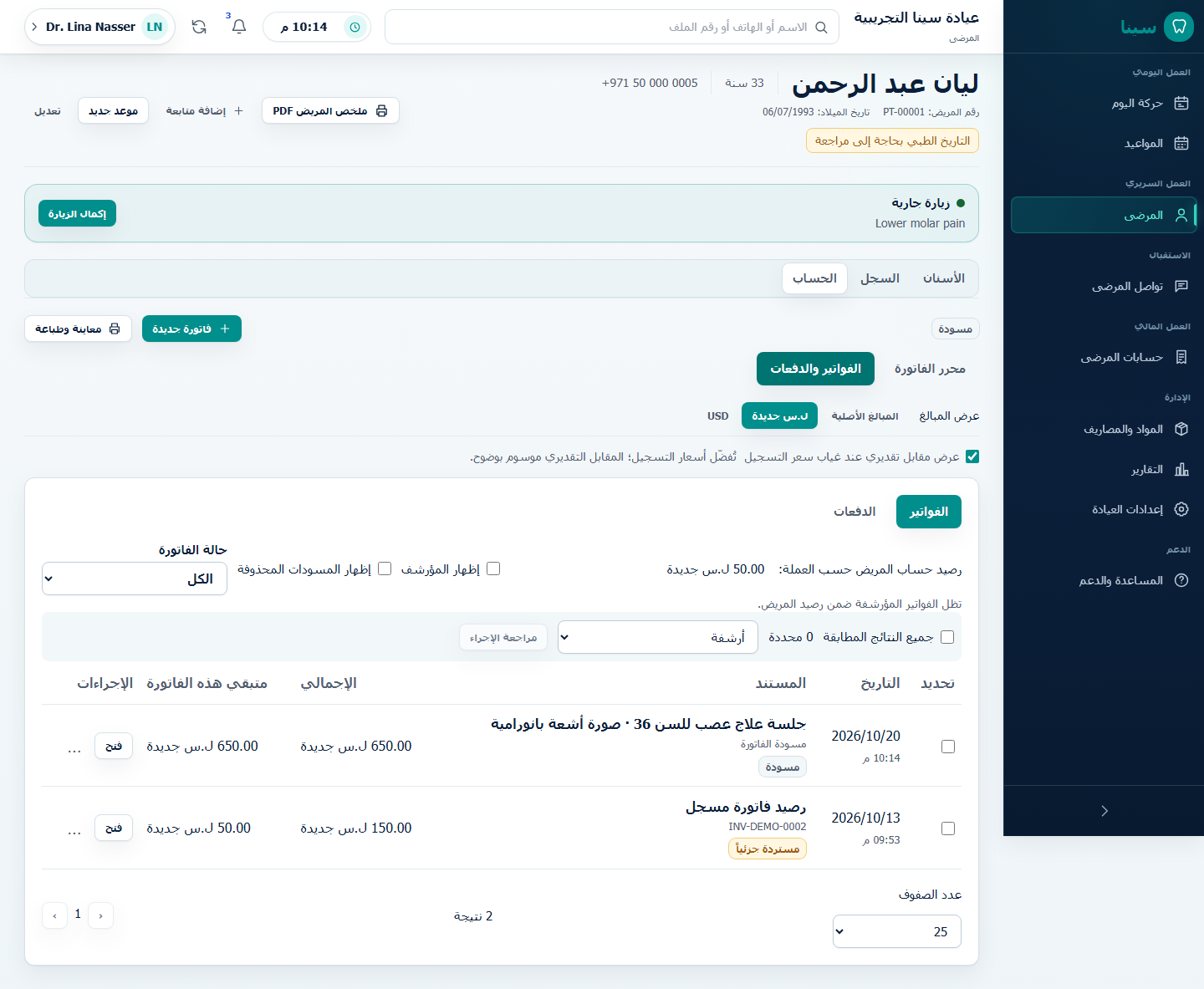
Look for: the service description above the document number, the Draft label, and separate Total and Remaining for this invoice values. Invoices / Payments switches the list; it does not record a new payment. The original fictional example also shows an active visit: opening the account does not complete it.
See the same fictional account on a phone

On a phone, each invoice becomes a card with its own description, date, total, remaining amount and Open action. Read the values inside the same card. These examples are Arabic; the corresponding controls follow your chosen interface language.
If payment uses another currency
Check actual money received, the exchange rate, the amount applied to the invoice and the remaining balance. “Settlement” means the part of the invoice paid by this payment; it is not another charge.
A fictional example: an invoice for 1,400 local units, paid with 10 USD at 140 local units per USD, is fully paid. The receipt distinguishes the 10 USD received from its 1,400 local-unit equivalent. This rate is an example, not today's market.
Local-currency payment needs no unrelated foreign-currency detail. If a line was priced in another currency, review its source amount and recorded rate too. Changing display currency changes how you read values, not the saved debt or cash. A current estimated equivalent is not a missing historical rate.
Correct, refund or print
Review Preview and print for clinic identity/logo, patient, readable services, totals and the relevant payment/exchange facts. Language or currency copies create no second invoice or payment.
Editing a fee does not change money already collected. Choose the action that matches what actually happened:
| What needs correction? | Action and result |
|---|---|
| The invoice should be cancelled, including a paid invoice | Open the invoice → More → Void invoice. The Cancel invoice review sets the amount due to zero. Money already received and not returned remains patient credit; cancelling does not return it. |
| A payment was recorded by mistake | In Payments, choose Reverse an incorrect payment recording. It reverses that recording's account/report effect and keeps the original receipt. Use this for an incorrect record, not money actually returned. A payment with a recorded refund cannot be reversed this way. |
| Money was actually returned to the patient | Choose Return cash to patient, select the original payment and enter the amount actually returned. Review the saved exchange rate, remaining balance and credit before confirmation. This does not change the treatment price. |
| The latest saved invoice edit was wrong | When offered under More, choose Undo the last saved invoice edit. Previous invoice values are restored through a new correction; actual payments and refunds remain unchanged. |
For a paid cancellation, review Received money retained as patient credit and explicitly confirm that no money is returned by this action, then choose Confirm correction. For example, cancelling a 100 USD invoice with 40 USD actually received and no refund leaves zero due on that invoice and 40 USD patient credit. It does not record a 40 USD refund.
For invoice-edit Undo, compare Current total, Total after undo, Amount due after correction and any Patient credit after correction. The result can differ from the earlier balance because later real payments/refunds remain recorded. Confirm only the preview you reviewed. If the saved state changed or the preview is unavailable, refresh and review again.
The original issued numbers, earlier invoice/receipt copies and correction history remain available. A saved invoice-edit Undo adds history; it does not erase an earlier correction. An already saved readable archive remains a snapshot of the facts and notices included when it was created. Preview or download again to obtain the current reviewed copy.
Archiving hides an issued invoice but preserves its balance. Deleting an unissued draft is a separate action. Financial corrections require the server and the relevant permission; a prepared offline copy does not authorize an offline invoice, payment or refund.
If a payment response is lost, check Invoices & payments and use the offered retry before recording another payment. If a quote is unavailable, use only an explicitly reviewed supported choice; do not invent a historical rate.